Crop
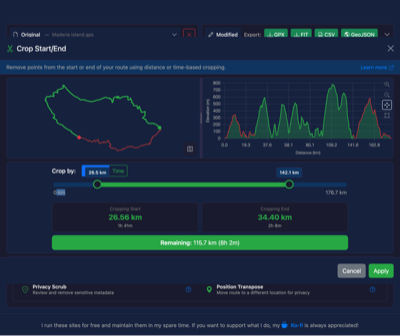
The Crop tool allows you to trim your route by removing sections from the beginning and/or end. This is useful for removing unwanted portions of a recorded activity.
When to Use
This tool is helpful when:
- Your recording started before you actually began your activity
- You want to remove the journey to/from the start point
- You need to extract just a portion of a longer route
- You want to cut out stops at the beginning or end
How to Use
- Upload your GPX file
- Click the Crop button to open the crop tool
- Choose your crop mode: Distance or Time
- Use the slider to adjust:
- Watch the preview update in real-time
- Click Apply Changes when satisfied
Crop Modes
By Distance
Crop based on kilometres or miles from the start and end of the route. Use this when you know exactly how much distance you want to remove.
By Time
Crop based on elapsed time. This is useful when you know you want to remove "the first 5 minutes" or "the last 10 minutes" of your recording.
Toggle between distance and time modes to find the most convenient way to identify your crop points.
Preview Information
While adjusting the crop, you'll see:
- Cropped from start: How much is being removed from the beginning
- Cropped from end: How much is being removed from the end
- Remaining: The final route length after cropping
Statistics Comparison
The tool shows you a comparison of:
| Statistic | Original | After Crop | Removed |
|---|---|---|---|
| Distance | Full route | Cropped length | Difference |
| Ascent | Total climb | Remaining climb | Lost climb |
| Points | All points | Kept points | Removed points |
Tips
- The route and elevation preview update in real-time as you adjust the slider
- Use the map toggle to see your crop points on an actual map
- You can combine cropping with other tools like Reverse or Split