Position Transpose
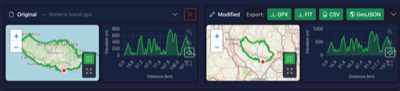
The Position Transpose tool moves your entire route to a completely different location on Earth. This is useful for privacy when sharing routes publicly, as it hides where you actually exercised while preserving all other activity data.
Why Use Position Transpose?
- Privacy protection - Hide your actual location when sharing routes online
- Anonymize home location - Prevent others from identifying where you live or work
- Share route shapes - Share interesting route patterns without revealing the real location
- Testing purposes - Move routes for testing GPS software with different locations
How to Use
Quick Selection
Use the dropdown menu to select a predefined destination:
- Europe - Paris, France
- Asia - Tokyo, Japan
- Africa - Nairobi, Kenya
- North America - New York, USA
- South America - Sao Paulo, Brazil
- Australia - Sydney, Australia
- Antarctica - McMurdo Station
Precise Placement
Click anywhere on the map to set a custom destination. The map shows a preview of where your route will be positioned (shown as a dashed blue line).
How It Works
Coordinate Shifting
The tool calculates the offset between your route's starting point and your chosen destination. This same offset is then applied to every point in your file:
- All track points
- All waypoints
- All route points
This means your route keeps its exact shape - only the location changes.
Elevation Adjustment
The tool adjusts elevation so your route's starting point is at ground level at the new location:
- Fetches the real ground elevation at your chosen destination
- Calculates the difference from your original starting elevation
- Applies this same offset to all elevation values
Important: Only the starting point is guaranteed to be at ground level. The rest of the route preserves your original elevation profile (all the climbs and descents), which means other points along the route may end up above or below the actual terrain at the new location. This is intentional - it keeps your elevation data accurate relative to where you started, rather than trying to match the terrain of a completely different location.
This ensures your route starts at ground level rather than floating in the air or underground.
What Gets Changed
- Latitude/Longitude - All coordinates are shifted by the same offset
- Elevation - Adjusted to match ground level at destination
What Is Preserved
- Route shape - Distances between points stay the same
- Timestamps - All time data is unchanged
- Speed data - Calculated speeds remain accurate
- Heart rate - All sensor data is preserved
- Cadence - Cycling/running cadence unchanged
- Power - Power meter data preserved
- Temperature - Temperature readings unchanged
- Waypoint names - All waypoint metadata preserved
Tips
- The ghost preview on the map shows exactly where your route will appear
- Wait for the elevation lookup to complete before applying (shows "Ready to transpose")
- Combine with Privacy Scrub to also remove device/personal metadata
- Combine with Remove Timestamps if you also want to hide when the activity occurred
Notes
- Transposition is non-destructive - your original file is not modified
- The elevation API may take a moment to respond
- If elevation lookup fails, you can still apply the transposition (elevation won't be adjusted)
- Changes can be undone using the undo feature before downloading
- Very long routes may look distorted when moved to very different latitudes due to map projection differences