Split
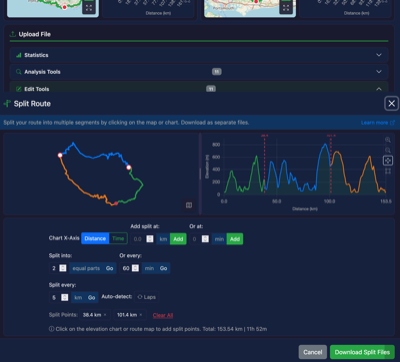
The Split tool divides your GPX route into multiple segments, which can be downloaded as separate files in a ZIP archive.
When to Use
This tool is useful when:
- You want to break a long route into daily stages
- You need to separate different sections of an activity
- You want to share only part of a route with others
- You're planning a multi-day journey and need separate files for each day
How to Use
- Upload your GPX file
- Click the Split button to open the split tool
- Add split points by clicking on the route or elevation chart
- Drag split points to adjust their position
- Name each segment (optional)
- Click Download Split Files to get your ZIP archive
Adding Split Points
Click to Add
You can click directly on either the route preview or the elevation chart to add a split point at that location. The cursor changes to a crosshair to indicate you can click.
Equal Parts
To divide your route into equal segments:
- Enter the number of parts (2-20)
- Click Calculate
- Split points will be automatically placed at equal intervals
Manual Distance Entry
Enter a specific distance from the start:
- Enter a distance value in the input field
- Click Add to place a split point at that exact distance
Moving Split Points
Split points can be dragged to reposition them:
- Hover over a split point until the cursor changes to a grab icon
- Click and drag to move the split point
- Release to set the new position
- Works on both the elevation chart and route preview
The preview updates in real-time as you drag.
Managing Split Points
- View splits: All split points are shown as badges with their distance
- Remove a split: Click the X on any split point badge
- Clear all: Use the "Clear All" link to remove all split points
Segment Preview
Each segment is displayed with:
- A colour-coded number matching the route preview
- An editable name field (used for the downloaded filename)
- Distance range and total distance
- Point count
Map View
Toggle between the route canvas and an interactive map:
- Click the map button to switch views
- Use the fullscreen button to expand the map
- Split points are shown on both views
- Click on the map route to add split points
Downloading
Click Download Split Files to download a ZIP archive containing:
- One GPX file per segment
- Files named using your custom segment names (or "route_part1.gpx" etc.)
After downloading, a re-download link appears in the Applied Tools section on the main screen, allowing you to download the ZIP again without reopening the tool.
Persistent Settings
If you close the split tool and reopen it for the same file, your split points and segment names are preserved. This allows you to:
- Review other tools or the main preview
- Return to the split tool to continue editing
- Make adjustments before final download
Settings are cleared when you load a new file.
Tips
- Use the elevation chart to identify natural split points (valleys, summits, rest stops)
- Each segment is shown in a different colour for easy identification
- Segment names are sanitised for safe filenames
- The preview updates instantly as you add, remove, or drag split points