Validate File
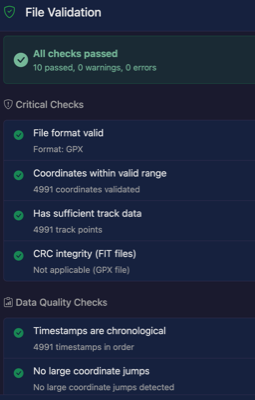
The Validate File tool runs a series of checks on your GPX or FIT file to detect errors, corruption, and data quality issues.
How to Use
- Load a GPX or FIT file
- Click the Validate File button in the Tools section
- The validation modal will open and run all checks
- Review the results - each check shows pass, warning, or error status
Validation Checks
Critical Checks
These checks verify the fundamental integrity of your file:
- File format valid - Confirms the file is a valid GPX or FIT format
- Coordinates within valid range - Latitude must be -90 to 90, longitude must be -180 to 180
- Has sufficient track data - File must contain at least 2 track points
- CRC integrity (FIT files) - Verifies the FIT file's checksum is correct
Data Quality Checks
These checks identify potential data quality issues:
- Timestamps are chronological - Time should always move forward, not backwards
- No large coordinate jumps - Flags jumps greater than 100km between consecutive points (likely GPS glitch)
- Elevation changes reasonable - Flags elevation changes greater than 1000m between points
- No future timestamps - Timestamps should not be in the future
- Sensor data in valid range - Heart rate (0-250 bpm), Power (0-5000 W), Cadence (0-250 rpm)
- No unrealistic speeds - Detects impossible speeds that indicate GPS errors
Speed Check
The speed validation check identifies points where the calculated speed between consecutive GPS positions is unrealistic:
Thresholds:
- Error (>200 km/h) - Almost certainly a GPS glitch, unless the file is from high-speed transport
- Warning (>100 km/h) - Suspicious for most activities; might be legitimate for cycling downhill or motorized transport
How it works:
- Calculates speed between each pair of consecutive points using distance and time difference
- Flags points that exceed the thresholds
- Reports the maximum speed found and number of issues
Common causes of unrealistic speeds:
- GPS signal loss followed by position jump when signal returns
- Device malfunction or cold start positioning errors
- Tunnels, dense forests, or urban canyons causing multipath errors
- Combining tracks from different times/locations
Understanding Results
Each check displays one of three statuses:
- Pass - Check completed successfully, no issues found
- Warning - Potential issue detected, but file is still usable
- Error - Critical issue that may affect file usability
Common Issues
Large Coordinate Jumps
Usually caused by GPS signal loss (tunnels, dense forests, urban canyons). The GPS receiver may record an incorrect position when signal is regained.Timestamps Out of Order
Can occur when:- Combining multiple tracks that overlap in time
- GPS device clock issues
- Daylight saving time transitions
Extreme Elevation Changes
Often caused by barometric pressure changes or GPS altitude errors. Consider using the Elevation Check tool to fix these issues.Unrealistic Speeds
Typically caused by GPS position jumps. Use the Crop tool to remove problematic sections, or Split to separate the track at jump points.Notes
- Validation does not modify your file - it only reports issues
- Some warnings may be legitimate for certain activities (e.g., air travel would show large coordinate jumps and high speeds)
- Use other tools like Crop, Elevation Check, or Remove Still Time to fix detected issues