 PLC Tracker
PLC Tracker
PLC Tracker
Turn your PLC revision items into powerful Anki flashcards for spaced repetition learning.
No problem! PLC Tracker works great on its own for tracking your GCSE revision progress. You can use the Notes feature to add personal notes, hints, or key points to any revision item — perfect for jotting down things you want to remember without needing Anki.
The world's most popular spaced repetition flashcard app
Anki is a free, open-source flashcard program that uses spaced repetition to help you remember things more efficiently. Instead of reviewing all your cards every day, Anki shows you cards just before you're about to forget them — meaning you spend less time studying while remembering more. Visit ankiweb.net →
Anki's algorithm schedules reviews at optimal intervals. Cards you know well appear less often; cards you struggle with appear more frequently.
Anki works on Windows, Mac, Linux, iOS, and Android. Your cards sync across all your devices so you can study anywhere.
Spaced repetition is backed by decades of cognitive science research. It's used by medical students, language learners, and top performers worldwide.
GCSEs require you to remember a huge amount of information across many subjects. Anki helps you retain all those facts, definitions, and concepts by showing them to you at the perfect time for your brain to remember them long-term.
A direct connection to Anki running on your computer
PLC Tracker communicates with Anki through Anki-Connect, a free add-on that lets external programs interact with your Anki collection.
PLC Tracker connects directly to Anki running on your computer. This means:
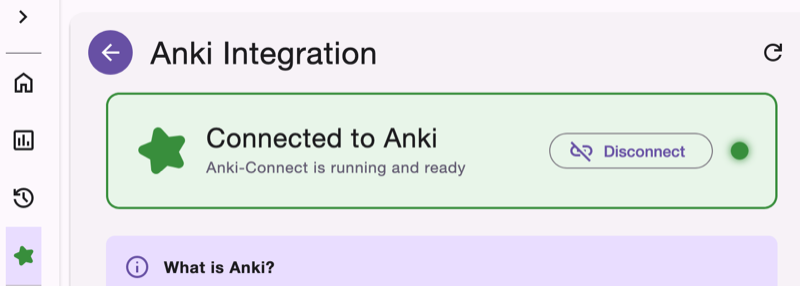
See at a glance if Anki is connected
zoom_in Click to enlarge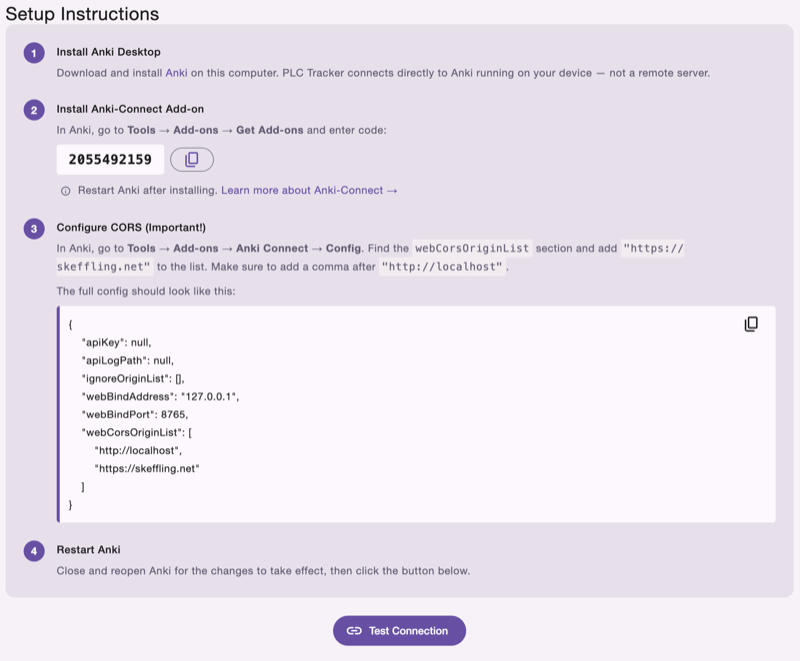
Step-by-step instructions to get connected
zoom_in Click to enlargeTurn any revision item into a flashcard with one click
Navigate to any topic in your PLC and find a revision item you want to turn into a flashcard.
Each revision item has an Anki button. Click it to open the card editor with the item pre-filled as the question.
Add the answer in your own words. This is the key part — explaining it yourself helps you understand and remember it better.
Click save and the card is instantly added to your Anki collection, organised by subject and topic.
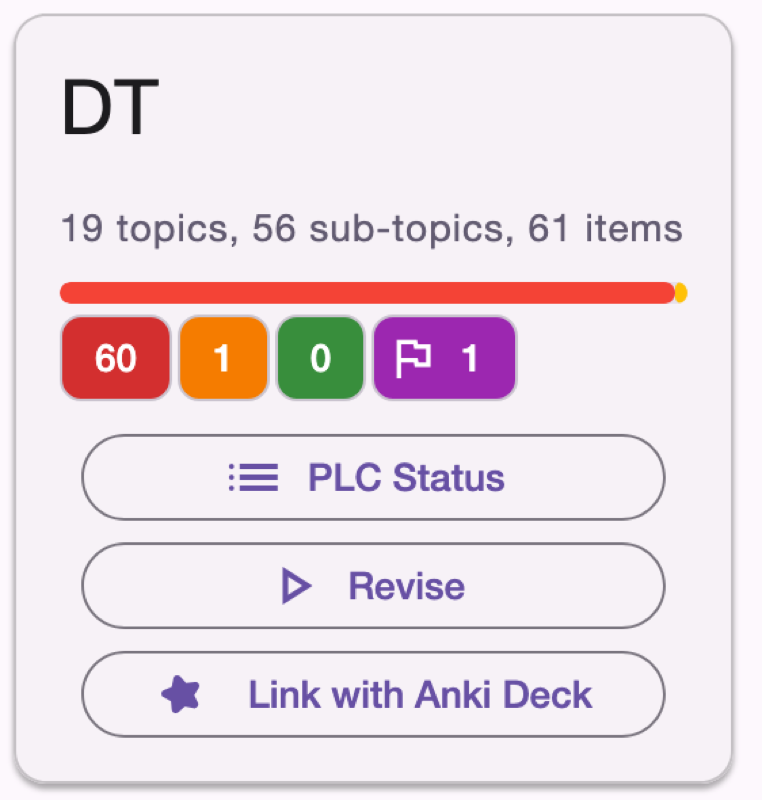
One-click access on every revision item
zoom_in Click to enlarge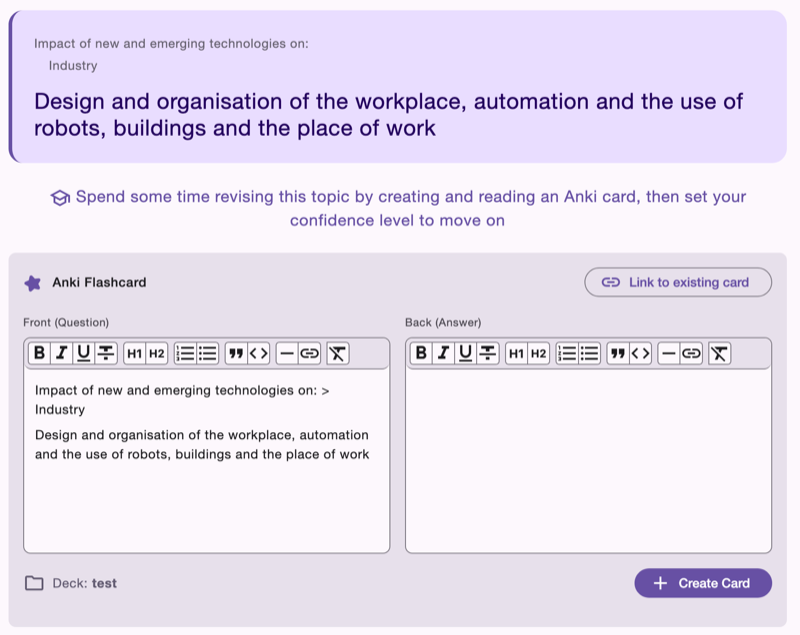
Simple editor for question and answer
zoom_in Click to enlarge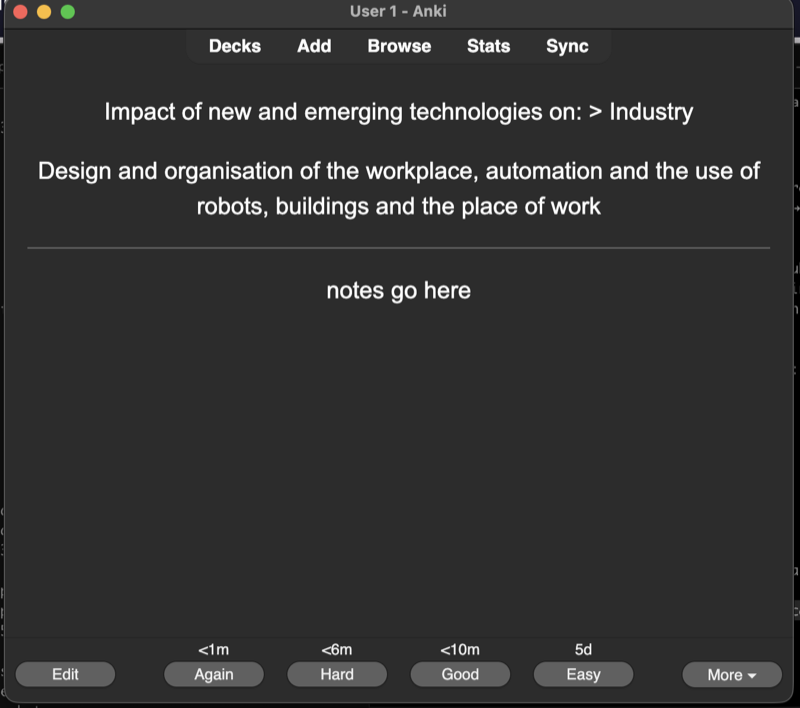
Your card appears instantly in Anki
zoom_in Click to enlargeAuto-create decks or link to existing ones
PLC Tracker can auto-create Anki decks for you, or you can link to existing decks. Cards are organised in a clear hierarchy:
You can choose to organise by Subject only (one deck per subject) or Subject and Topic (sub-decks for each topic using the format SUBJECT::TopicName). This flexibility lets you study an entire subject or focus on specific topics.
New to Anki? PLC Tracker can auto-create all your decks in one click. When you first link a subject, you'll see a Quick Setup panel that can create decks for all your subjects at once — no need to set them up one by one.
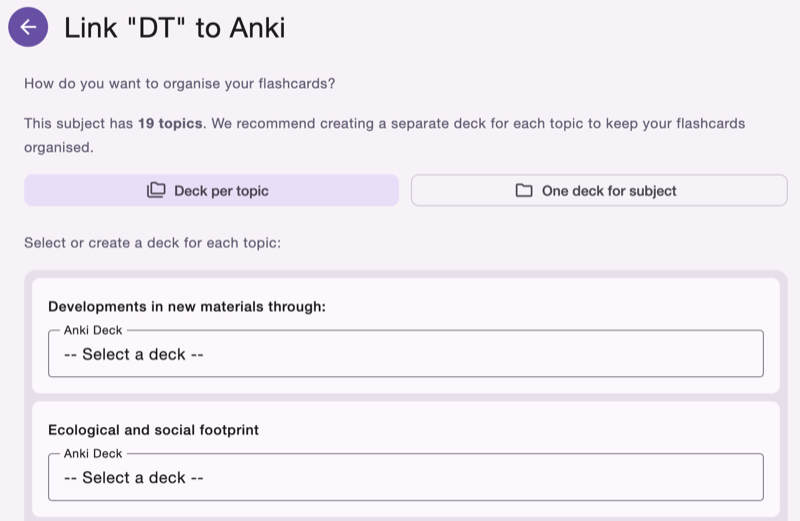
Choose how to organise cards for each subject
zoom_in Click to enlargeKeep track of which items have flashcards
Items that have Anki cards show a blue Anki icon. At a glance, you can see which parts of your PLC are covered by flashcards.
Need to update a card? Click the Anki button on any item to edit its existing card or create a new one.
Changes sync instantly. Create a card in PLC Tracker and it appears in Anki immediately — no manual sync needed.
If Anki isn't running, we remember which items have cards so you still see the indicators. They'll sync when you reconnect.
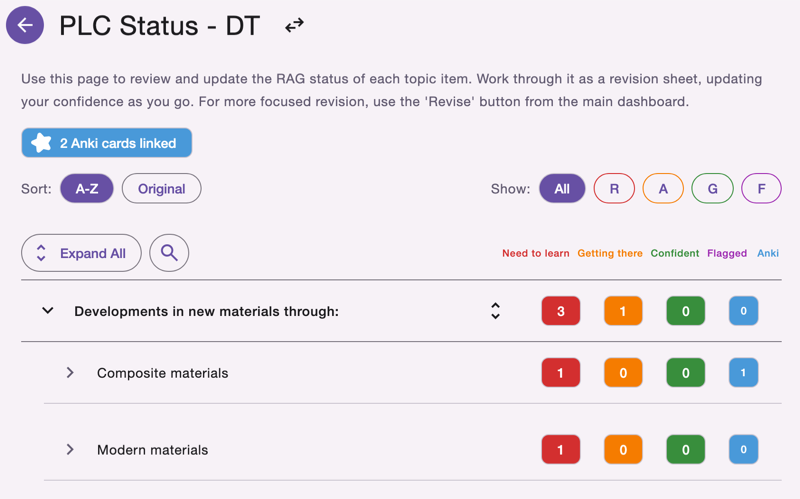
Blue icons show items with flashcards
zoom_in Click to enlarge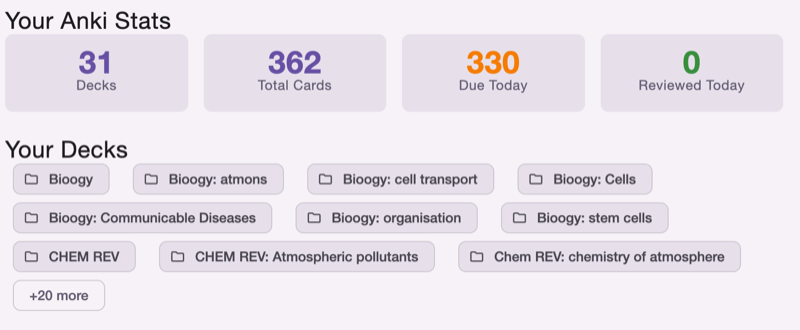
See your deck and card counts
zoom_in Click to enlargeUse PLC Tracker to create, then Anki to revise
The main purpose of our Anki integration is to help you build up a comprehensive deck of flashcards for each of your GCSE subjects. PLC Tracker makes it easy to create cards as you work through your revision checklist.
Once you've created your cards, you can then use Anki in the normal way — on your computer, phone, or tablet — to revise using spaced repetition. Anki will schedule your reviews automatically, showing you cards just before you'd forget them.
1. Create cards in PLC Tracker as you work through your subjects
2. Review cards in Anki daily (even just 10-15 minutes helps)
3. Watch your knowledge grow as spaced repetition does its magic
Many students find that creating the flashcards is itself a valuable learning exercise. Writing the answer in your own words forces you to understand the material, not just recognise it.
Set up Anki integration in a few minutes
First, you need to set up the connection between PLC Tracker and Anki Desktop on your computer.
Get Anki Desktop for free from apps.ankiweb.net. It's available for Windows, Mac, and Linux.
In Anki, go to Tools → Add-ons → Get Add-ons and enter code 2055492159. Restart Anki after installing.
Go to Tools → Add-ons → Anki-Connect → Config and add "https://skeffling.net" to the webCorsOriginList. Full instructions are in the app.
Open PLC Tracker, go to the Anki Integration page, and click Test Connection. Once connected, you'll see a green status indicator.
Once connected, you need to tell PLC Tracker where to save cards for each subject. You can do this quickly for all subjects at once, or manually one at a time.
The fastest way to get started! When you click "Set Up Deck" for any subject, you'll see a Quick Setup panel that can create decks for all your subjects in one click.
Creates a single deck for each subject (e.g., "Maths", "Science", "History"). Simple and easy to manage.
Creates decks like "MATHS::Algebra", "MATHS::Geometry" for every topic across all subjects. Great for focused study.
Tip: Use the toggle to switch between "All Subjects" and setting up just one subject at a time.
Already have Anki decks? You can link each subject to your existing decks manually:
In PLC Tracker, click the Anki icon in the left menu to open the Anki Integration page.
Scroll down to the "Subject Deck Mappings" section. You'll see a list of your PLC subjects that need to be linked to Anki decks.
Scroll past the Quick Setup section to find the manual options. You can:
Decide how to organise cards within the subject:
Once linked, the Anki button will appear on revision items for that subject. Click it to create flashcards that automatically save to the correct deck.
Connect Anki to PLC Tracker and start building your flashcard collection