 PLC Tracker
PLC Tracker
PLC Tracker
Keep your revision data safe and sync across all your devices with automatic cloud backup.
Your data, automatically backed up to your Google Drive
PLC Tracker can save your revision data directly to your Google Drive. This means your progress is safely backed up in the cloud, and you can access it from any computer or device.
Once connected, PLC Tracker auto-saves your data every minute when changes are detected. No need to remember to save!
Access your revision data from school, home, or anywhere. Your progress syncs automatically between devices.
PLC Tracker keeps the last 3 backup versions. If something goes wrong, you can restore from a previous backup.
If you make changes on two computers at once, PLC Tracker detects the conflict and lets you choose which version to keep.
Backups are saved to your personal Google Drive in a folder called "PLC Tracker". We never see or access your Google account — the data goes directly from your browser to your Drive. You can view, download, or delete your backups anytime from Google Drive.
Start at school, continue at home
Your data automatically syncs through Google Drive. Just sign in on any computer to pick up where you left off.
Auto-saves every minute when you make changes
Click "Load from Drive" to get the latest version
Auto-reconnects to Google Drive when you open PLC Tracker
To avoid conflicts, we recommend only using PLC Tracker on one device at a time. If you make changes on two computers simultaneously, you'll see a conflict warning and need to choose which version to keep. The other version's changes will be lost (though 3 backup versions are kept, so you may be able to recover).
Choose which version to keep when conflicts occur
zoom_in Click to enlarge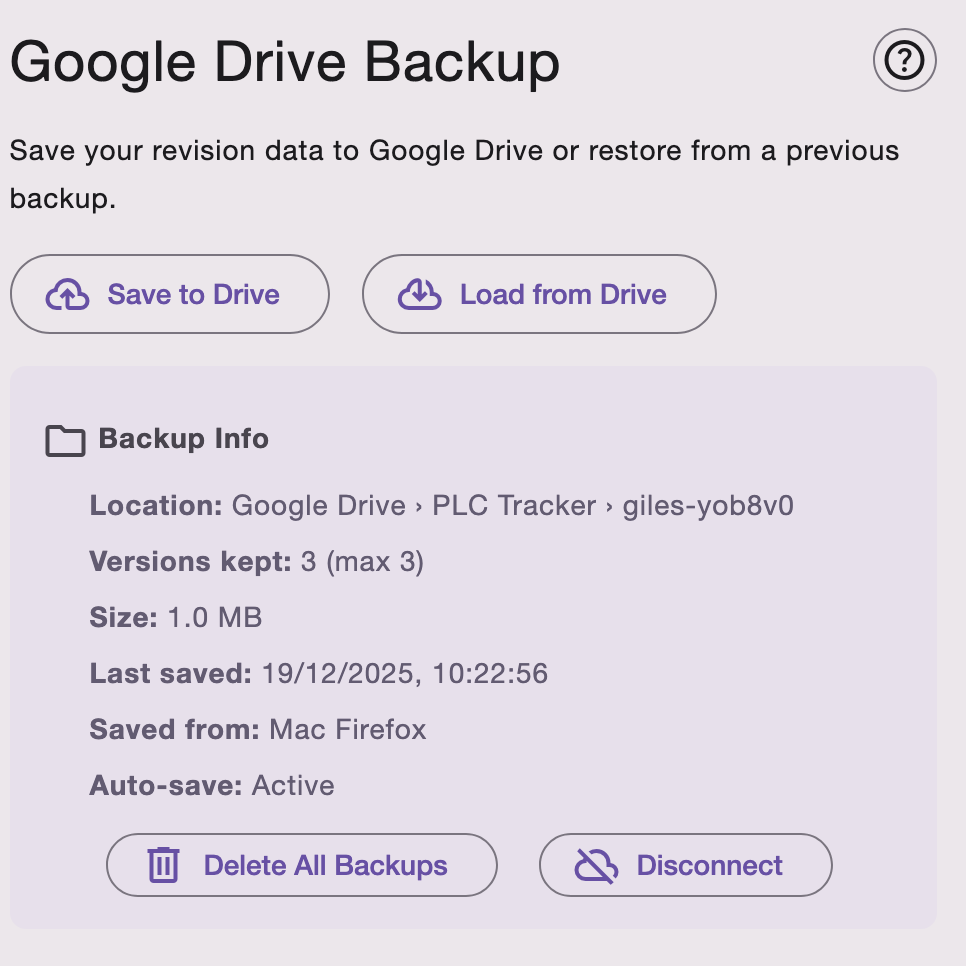
See which device made each backup
zoom_in Click to enlargeStep-by-step instructions for Google Drive backup
Connect PLC Tracker to your Google account to enable automatic backups.
Click the cloud icon in the left menu, or go to the menu and select "Google Drive Backup".
Click the Save to Drive button. This will open a Google sign-in popup.
Select your Google account and grant permission for PLC Tracker to save files to your Drive. We only request access to files we create — we can't see your other files.
Your data is now backed up. Auto-save is enabled and will save every minute when changes are detected. The cloud icon in the menu turns green to show you're connected.
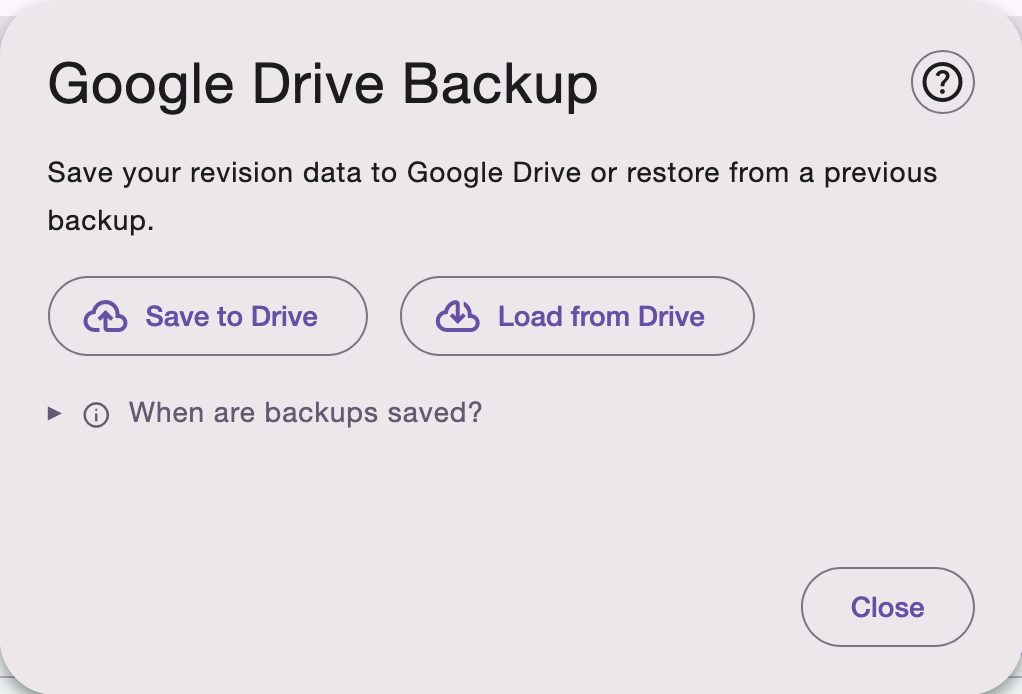
Click Save to Drive to connect
zoom_in Click to enlarge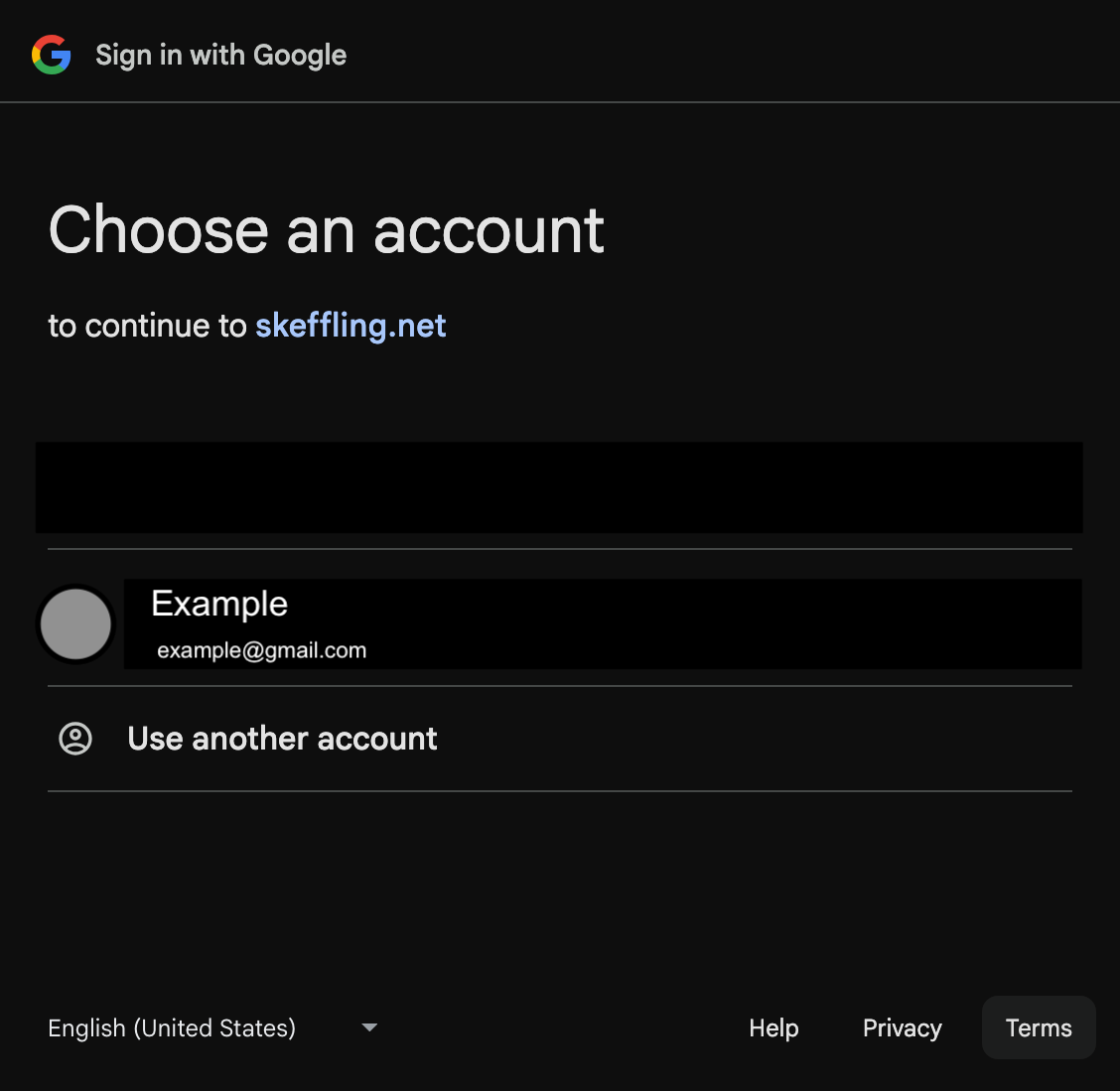
Sign in and grant permission
zoom_in Click to enlargeSee when your data was last saved and how much space it's using.
The cloud icon in the left menu shows your connection status:
Click the cloud icon to open the Google Drive Backup dialog. Here you'll see:
View all backup details
zoom_in Click to enlargeWant to use PLC Tracker on another computer? Here's how to set it up.
Go to skeffling.net/plc on your second computer. You'll see a fresh PLC Tracker with no data.
Click the cloud icon in the left menu to open the backup dialog.
Click the Load from Drive button and sign in with the same Google account you used on your first computer.
You'll see a list of available backups. Select the most recent one (or a different version if needed) and click to restore it.
Your data is now loaded on the second computer. Auto-save is enabled, so any changes you make will sync back to Google Drive.
To avoid sync conflicts, close PLC Tracker on your first computer before making changes on the second one. If you forget, the conflict detection will help you choose which version to keep.
Choose which backup version to restore
zoom_in Click to enlargeHow to remove your backup data or disconnect from Google Drive.
Stops auto-save and signs out from Google, but keeps your backup in Google Drive. Use this when you want to temporarily stop syncing.
How: Open Google Drive Backup → Click "Disconnect"
Permanently deletes all your backup files from Google Drive. Your local data is kept, but the cloud backup is gone.
How: Open Google Drive Backup → Click "Delete All Backups"
If you delete your backups from Google Drive, they cannot be recovered. Make sure you have a local copy of your data (use "Export Data" in the menu) before deleting if you might need it later.
Disconnect or delete your backups
zoom_in Click to enlargeCommon questions about Google Drive backup
Backups are stored in your Google Drive in a folder called PLC Tracker. Inside that, there's a subfolder named after your user profile (e.g., "Andrew-abc123"). You can view these files directly in Google Drive at any time.
Auto-save checks for changes every 60 seconds. If there are no changes since the last save, it skips that cycle. This means your data is saved within a minute of making any changes.
For security, Google's sign-in tokens expire when you close the page. PLC Tracker tries to silently reconnect when you return, but sometimes you need to click "Save to Drive" to re-authenticate. This is a one-click process if you're already signed in to Google.
PLC Tracker works offline! Your data is stored locally in your browser. When you come back online, any pending changes will be automatically synced to Google Drive. The cloud icon turns orange to show you're offline.
To sync data between computers, you need to use the same Google account on all devices. If you use different accounts, each will have its own separate backup that won't sync with the others.
PLC Tracker backups are typically very small — usually less than 100KB even with lots of data. With 3 versions kept, you'll use less than 1MB of your Google Drive storage. You can see the exact size in the backup info panel.
Connect to Google Drive and never worry about losing your progress